TQRHub · Admin Guides
Team Workspace
Guide
Handle customer work, review public activity, and turn AI reports into informed next steps.
Start with the shared dashboard, then open the workspace for the task you need to complete.
Start here
Find the right workspace.
| Workspace | Use it for |
|---|---|
| Dashboard | Attention items, recent conversations, latest reports, and social activity. |
| Messaging Workflow | Overview, WhatsApp category queues, and Social Messages for Facebook and Instagram. |
| Customers | Search and manage customer profiles across connected channels. |
| Social Monitor | Public comments and replies on connected social pages. |
| Marketing Intel | Review AI reports generated from YouTube and web sources. |
| Settings | Configure categories, connected channels, AI, notifications, and team access. |
01 · TRIAGE INCOMING CONVERSATIONS
Start with the queue.
Open the right enquiry.
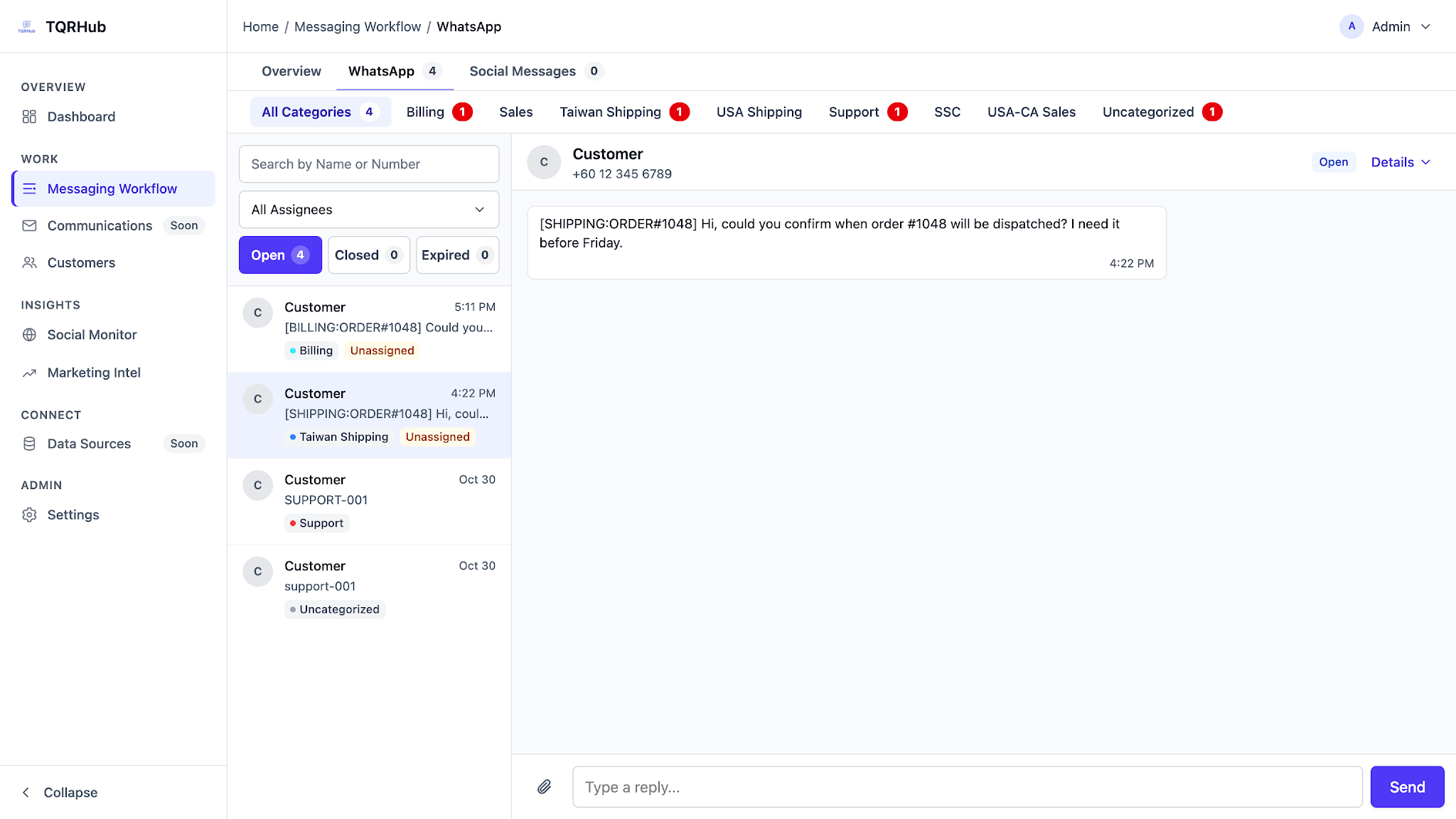
- Open Messaging Workflow → Overview. Review open, expired, and unassigned WhatsApp threads, category queues, and connected Facebook and Instagram conversations.
- Choose WhatsApp, then a category or All Categories. Search by name or number and filter by Assigned to Me, Unassigned, or a team member.
- Use Open, Closed, and Expired to focus the list. Open a conversation and check its category, history, and current status before replying.
02 · REPLY & COLLABORATE
A useful reply.
A clear owner and next step.
Respond to the customer
- Reply: open the intended enquiry, enter the message in the Reply box, and select Send.
- Attach a file: use the attachment control beside the reply box. Check the file and any caption before sending.
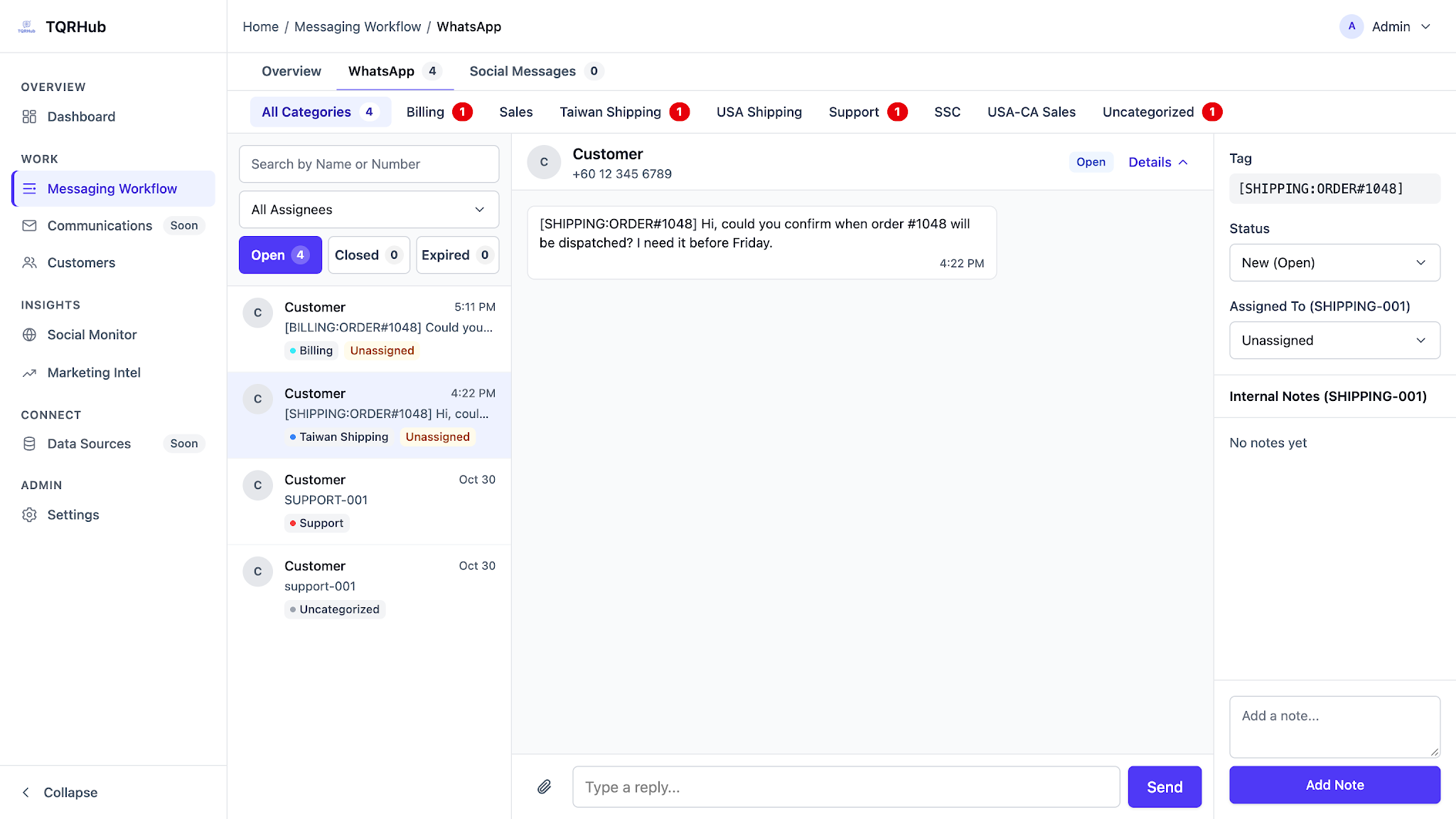
- Assign ownership: in Details, choose a team member under Assigned To. Assignment applies to that thread.
Keep the team aligned
- Add a private handoff: enter context under Internal Notes and select Add Note. Notes are for the team and are never sent to the customer.
- Update progress: set Status in Details to New (Open), In Progress (Open), Closed, or Expired. Close an enquiry when it is resolved.
03 · EXPIRED OR RESTRICTED REPLIES
Review the status.
Then decide what happens next.
Review each expired WhatsApp thread and decide what happens next. Do not leave it in the queue undecided.
Close it when work is complete.
If the enquiry is resolved or needs no further action, open the thread, expand Details, and set Status to Closed. The customer’s other enquiries stay open.
Reopen it when work remains.
Select Reopen Thread, confirm or assign an owner, review the conversation, and update its progress as the team handles it.
Reopening a thread does not reopen WhatsApp’s messaging window. Free-form replies need a customer message from the last 24 hours. Otherwise, wait for a new customer message or use an approved template.
Record the next step.
Add an internal note saying what remains, who owns it, and whether the team is waiting for the customer.
04 · SOCIAL MESSAGES & PUBLIC ACTIVITY
Private conversations.
Public discussions.
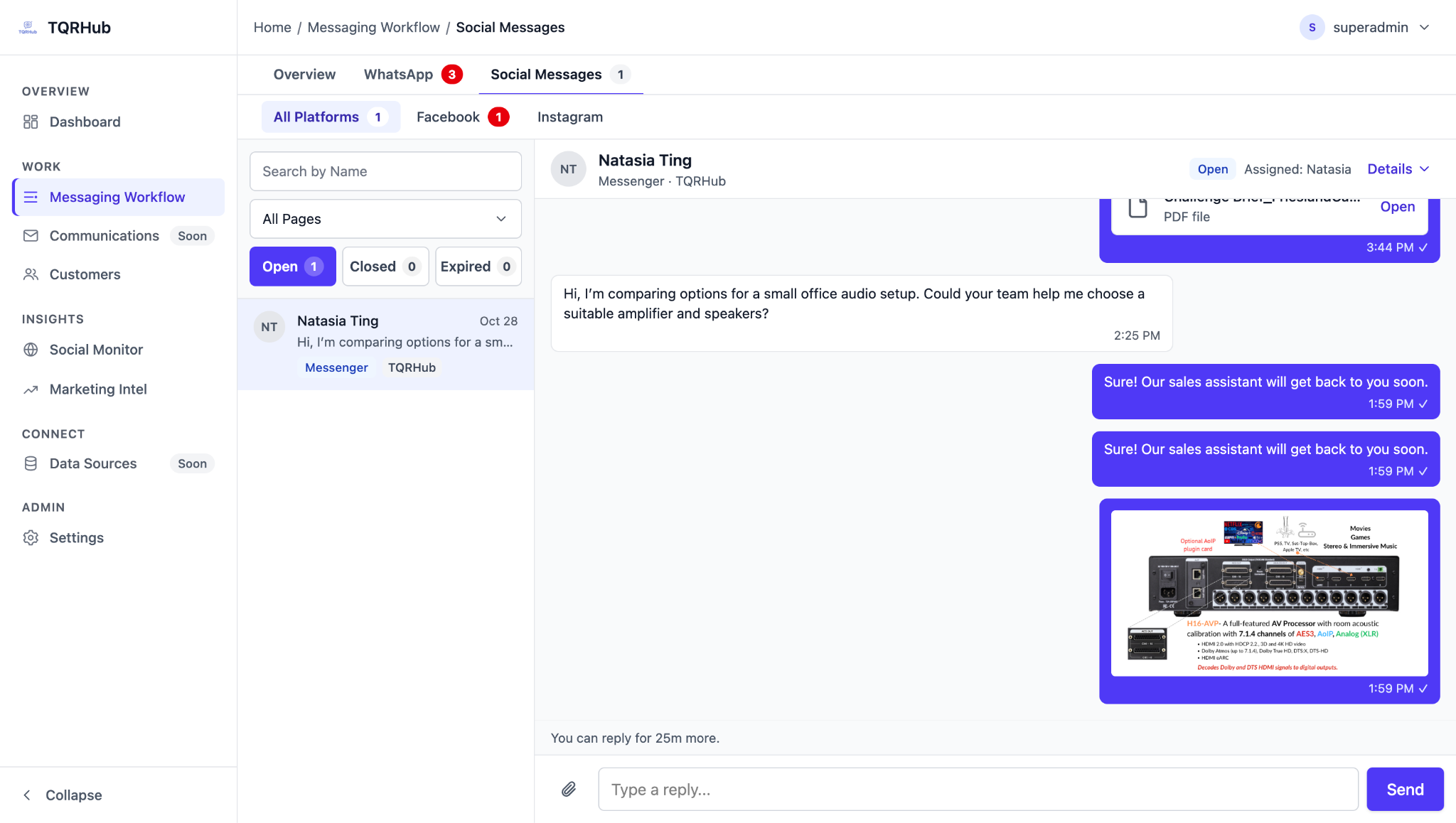
Use Social Messages for Facebook and Instagram.
Open Messaging Workflow → Social Messages for private conversations on the connected business profiles. Follow the reply availability notice on the conversation: an open conversation does not guarantee you can reply.
Use Social Monitor for public activity.
Social Monitor is separate from private messaging. Review the original post and its comment hierarchy, then use the controls appropriate to the item.
- Filter by channel, active or dismissed items, and keyword matches.
- Open the original post to inspect its public context.
- Reply to supported comments or replies from the feed. These responses are public.
- Dismiss reviewed items to keep the active queue focused. Use Keywords and Connected Pages to review monitoring setup.
05 · REVIEW MARKETING INTEL REPORTS
Read the findings.
Check the sources.
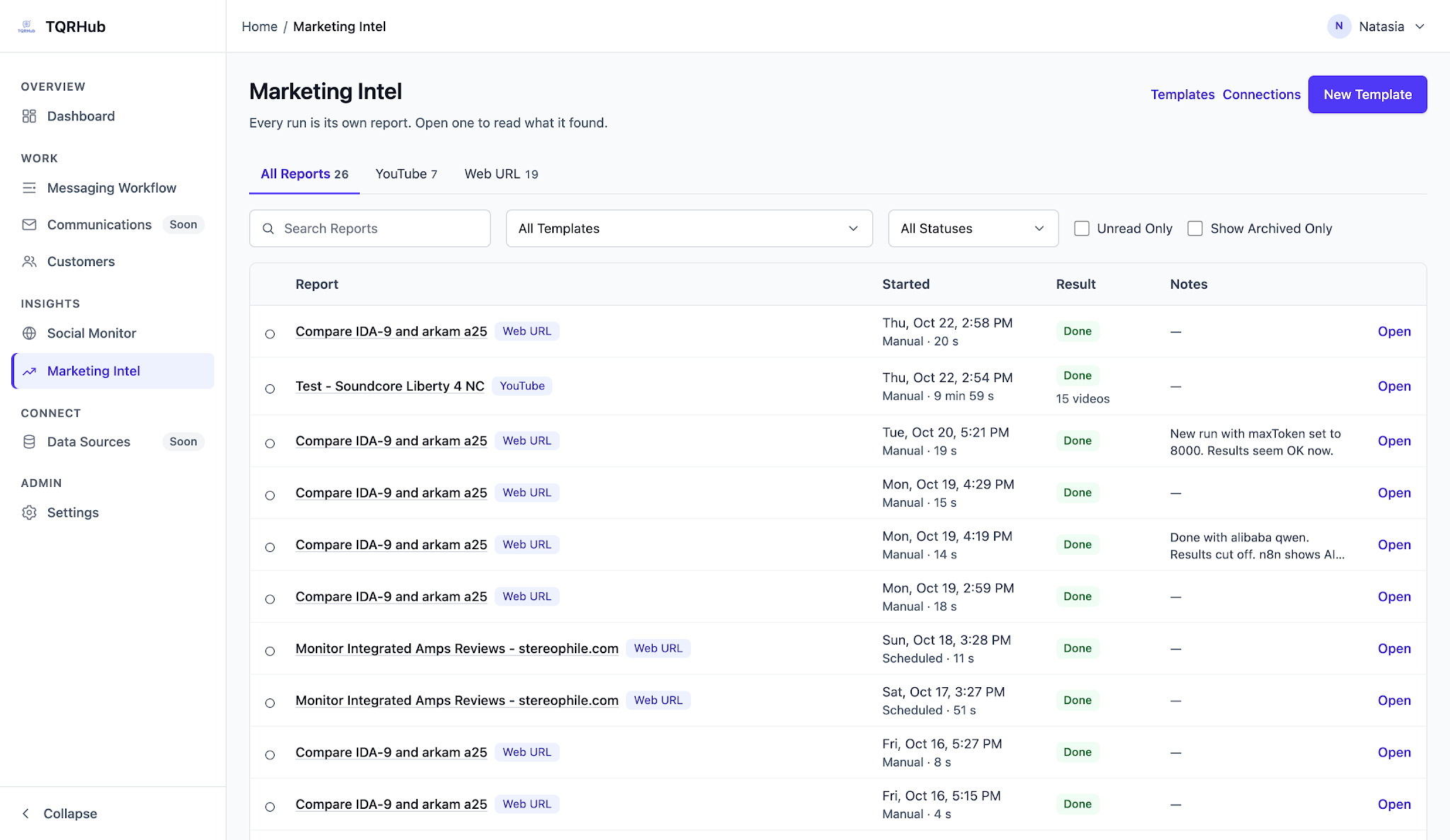
- Open Marketing Intel. Filter reports by source, template, and status, then open a run to inspect its findings.
- A YouTube report can include source videos, publication dates, AI summaries, product tags, and sentiment labels. Review the search and instructions used.
- Check important findings against the linked sources before using them in a decision.
- Add notes on what you checked and the action to take. Archive reviewed reports. Run Again starts another execution and may use configured services.
Use Templates to manage saved searches and monitoring setups, and Connections to review the required source and AI setup with your administrator.
Check the run outcome.
The status filter offers RunningDonePartialFailedTimed Out and a combined Failed or Timed Out option. For an incomplete run, check its details and source coverage before relying on the report or running it again.
No changes
A Web URL run may show No changes. Check template coverage, date range, and the change-only setting before assuming a fault.
No new videos
A YouTube run may show No new videos when matching videos were already reported or none meet the search. Check coverage and the date range.
Administrators configure templates and connections. The Marketing Intel Guide covers source limits, linked pages, manual tests, schedules, and usage.
06 · CATEGORIES & TEAM ACCESS
Keep routing clear.
Keep access intentional.
In Settings → General, set category names, slugs, colors, and priorities. The slug is the tag customers type, such as [BILLING].
Changing a category slug affects routing. Customers must use the new tag after the change.
Role definitions are covered in the Admin Setup documentation.
Before you hand over
Leave the next person ready.
- Check unassigned work.
- Update owners and progress.
- Leave concise internal notes.
- Identify enquiries waiting on the customer.