TQRFlow · Admin Guides
Market Intel
Guide
Turn connected information into intelligence your business can act on.
TQRFlow Market Intel brings data collection, preparation, AI analysis, and reporting into a managed workflow. Start with a template, define the information that matters, and turn relevant findings into a repeatable business process.
Templates can combine stages for connecting to sources, querying records, extracting content, and converting it into a form AI can analyze. Depending on the template and configured connections, this can include querying an SQL database, extracting web page content, or converting audio into a transcript before analysis and reporting.
From information to insight
Bring the right sources into the workflow.
Market intelligence can draw from public information and your own business records. Choose sources around a clear question: what changed, how offers compare, what customers need, or which developments deserve attention.
| Source | Useful information |
|---|---|
| YouTube and video platforms | Reviews, demonstrations, comparisons, and interviews. |
| Company and competitor websites | Products, pricing, specifications, promotions, and changes. |
| Press releases and newsrooms | Launches, partnerships, acquisitions, and announcements. |
| News sites and industry publications | Market developments, industry trends, and expert analysis. |
| Social media | Brand mentions, campaign activity, and customer sentiment. |
| Forums and communities | Customer needs, problems, recommendations, and emerging interests. |
| Review sites and marketplaces | Ratings, complaints, purchase considerations, and competing products. |
| Research reports and public datasets | Market size, demand, demographics, and economic indicators. |
| Events, webinars, and podcasts | Industry direction, competitor positioning, and expert perspectives. |
| Internal customer and sales data | Enquiries, support issues, purchase patterns, and reasons for lost sales. |
Source access and processing depend on the chosen template, available connections, and your access permissions. SQL queries and audio transcription require the corresponding connection and processing stages.
- 01 · CONNECTChoose relevant sources
- 02 · QUERYRetrieve the information
- 03 · PREPAREExtract & convert data
- 04 · ANALYZEApply focused AI instructions
- 05 · REPORTSummarize findings & sources
- 06 · REVIEWDecide the next action
01 · MANAGE YOUR TEMPLATES
Save a setup. Reuse it when you need it.
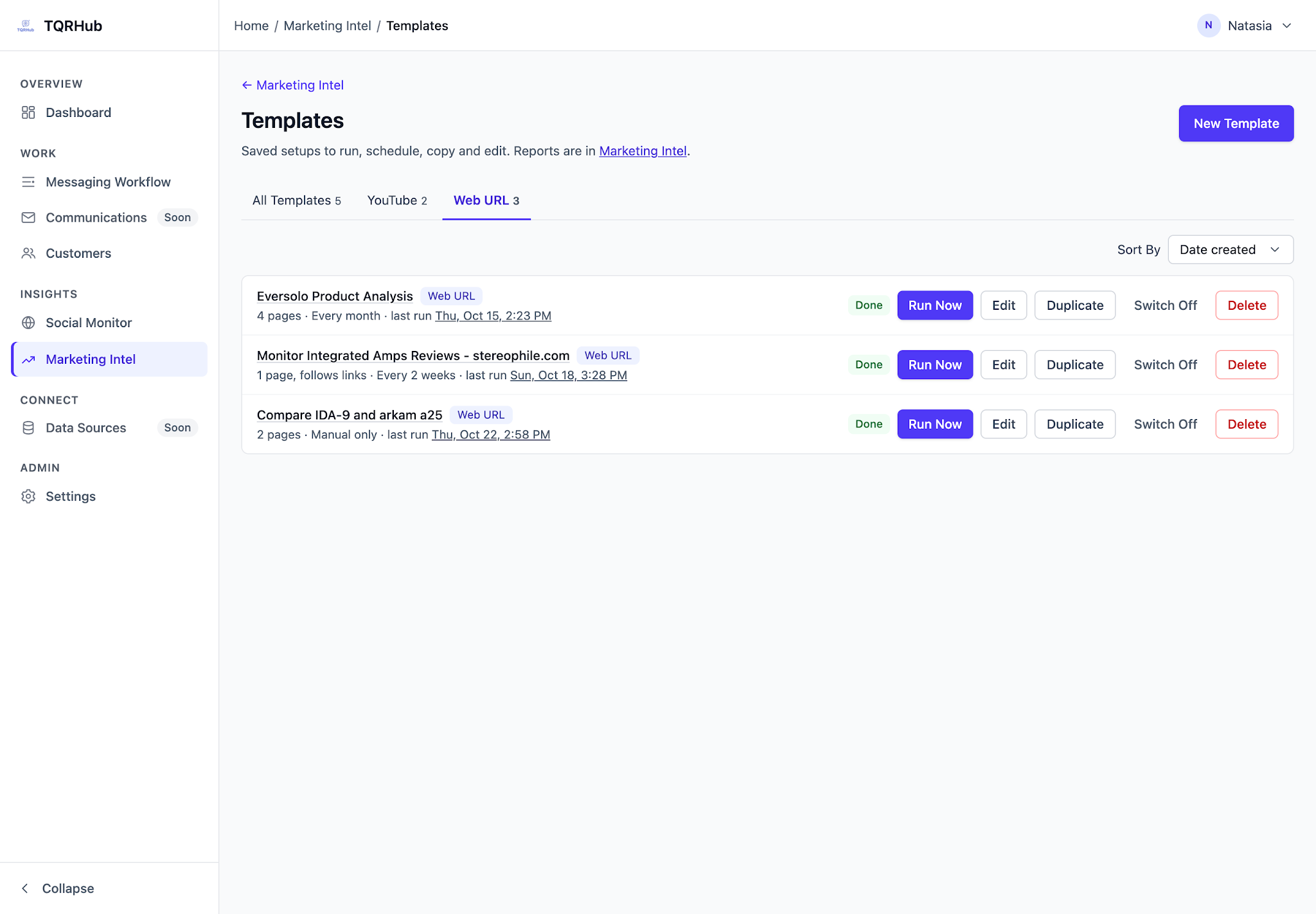
Open Marketing Intel → Templates. Choose All Templates, YouTube, or Web URL, then use Sort By to order the list by Date created, Code, or Name.
Run and review
Run Now starts a new execution using the configured services. The last-run link opens the previous report.
Edit or duplicate
Edit opens the saved setup; Save Template applies your changes. The source type cannot be changed after saving.
Duplicate creates a similar setup. Review its name, code, sources, instructions, and schedule before running it.
Pause a schedule
Switch Off stops scheduled runs for that template. Manual only is a schedule choice, separate from the Switched On setting.
Remove a setup
Delete removes a template setup. Use Switch Off when you only want to pause its schedule.
02 · WEB URL TEMPLATES
Monitor pages.
Compare offers. Spot changes.
Use a Web URL template to monitor selected public pages, compare products, or follow a review listing and the pages it links to.
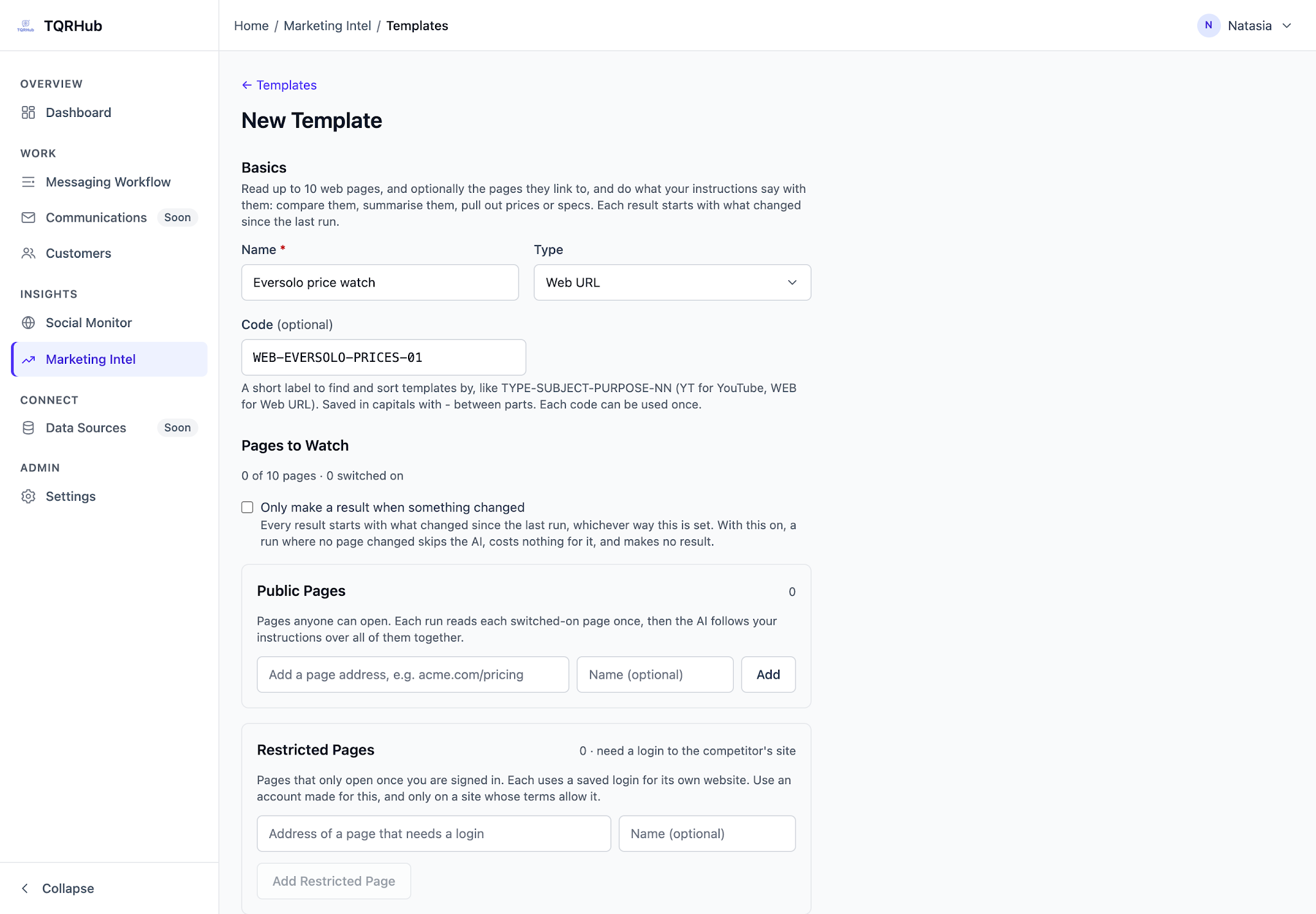
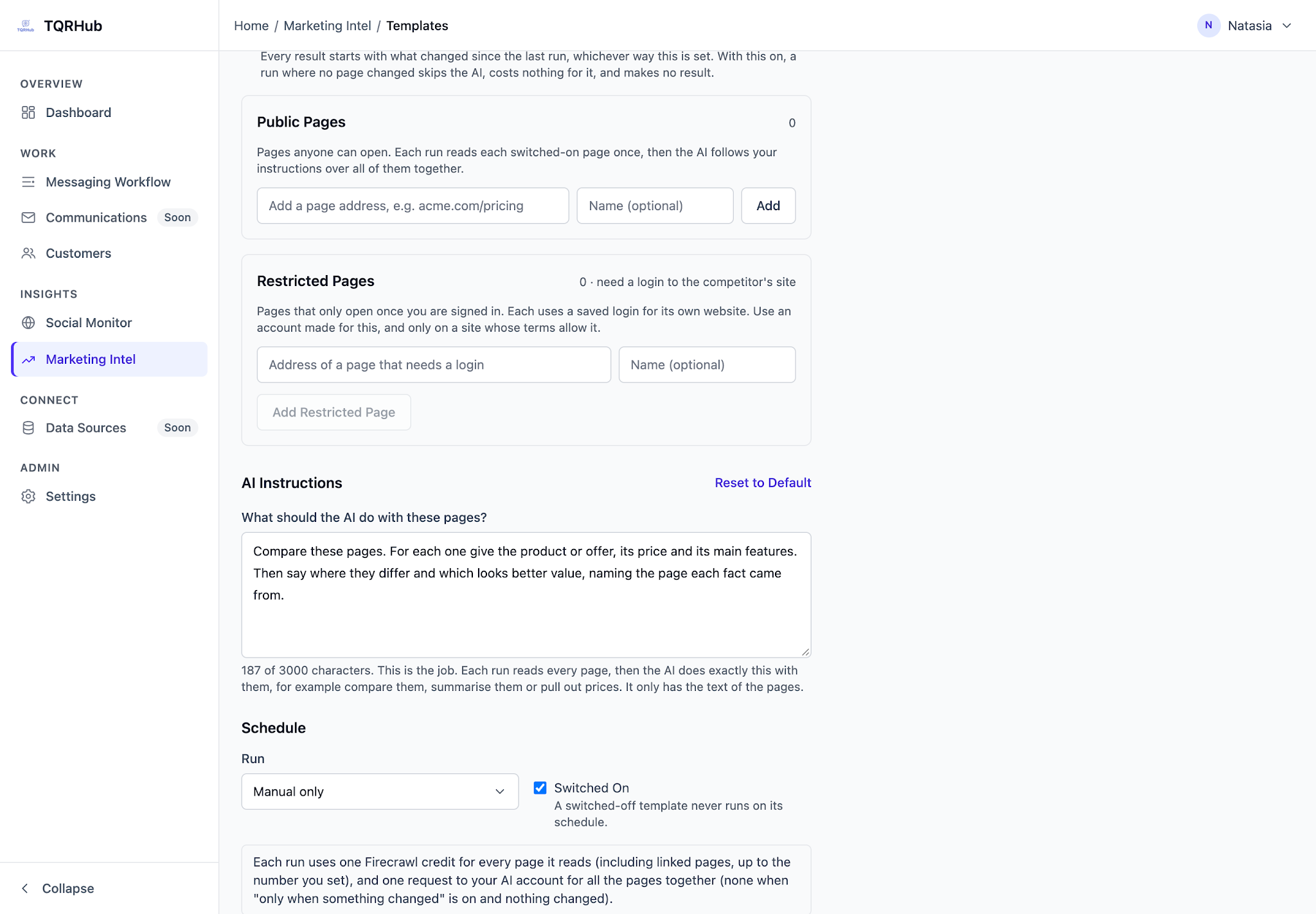
- Select New Template, enter a descriptive Name, and choose Web URL. Optionally add a unique Code, such as
WEB-EVERSOLO-PRICES-01. Each code can be used once. - Under Pages to Watch → Public Pages, enter a page address and an optional name, then select Add. Repeat for up to 10 starting pages. Use each page’s switch to include or exclude it.
Follow linked pages when useful
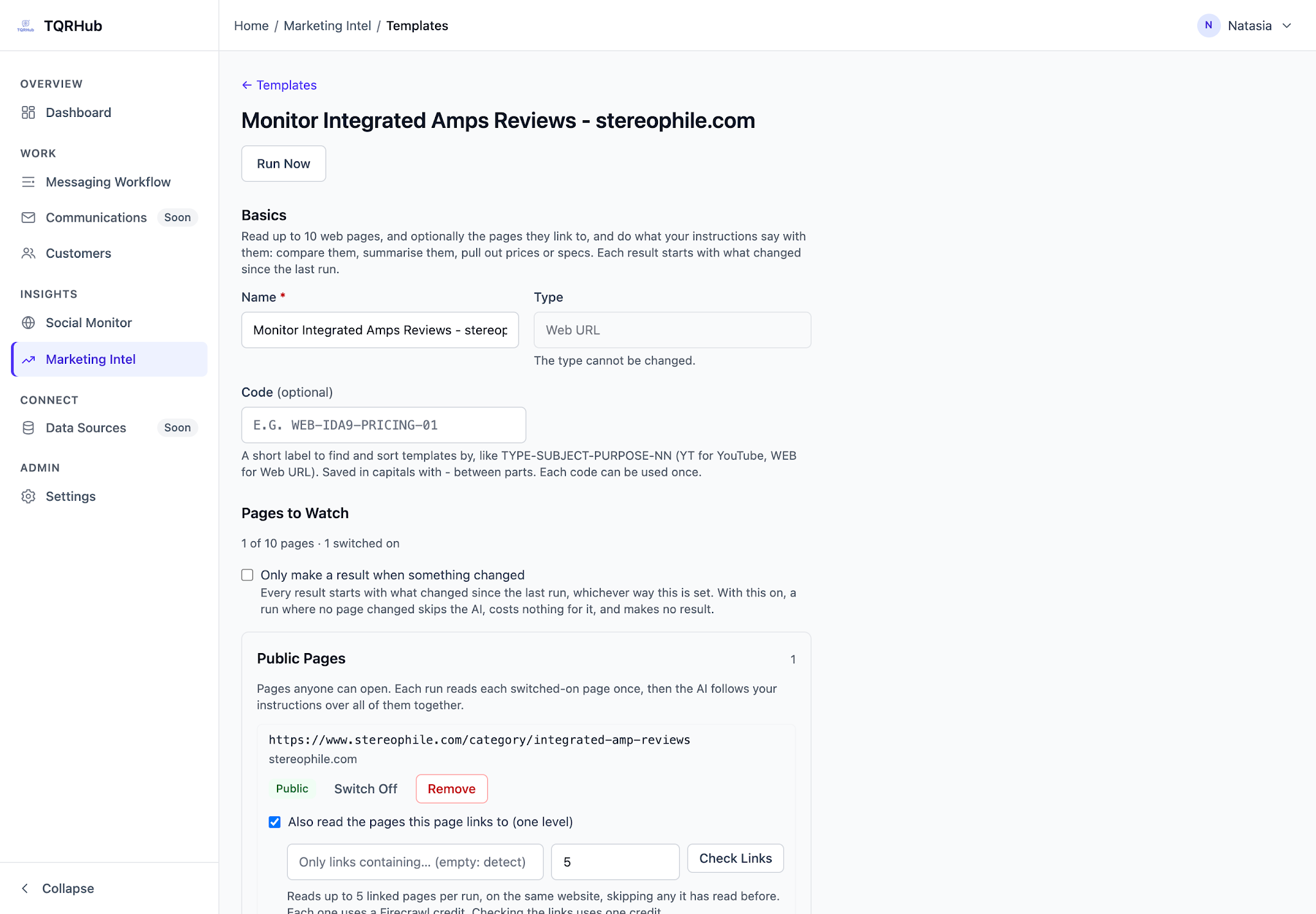
For an index or review listing, enable Also read the pages this page links to (one level). This follows one level of links rather than exploring an entire website.
- Only links containing narrows discovery using text in a link’s address. Leave it empty for detection.
- Read up to limits the number of linked pages read per run.
- Check Links previews discovery and uses one page-reading credit.
Control when a result is created
Optionally enable Only make a result when something changed. When no page changes, the run skips the AI and creates no new result. Page-reading usage can still apply.
- Under AI Instructions, describe the task and the facts that matter in up to 3,000 characters. Ask for source-page citations and tell the AI to mark missing information instead of guessing.
- Under Run, choose Manual only, then select Save Template.
- Open the saved template, select Run Now, and review the report and its source links before choosing a recurring schedule.
Example · Product and price monitoring
Compare the products on these pages. Report model names, listed prices and currencies, stock status, and key specifications. Highlight new or removed products and price changes since the previous run. Name the source page for each finding. Ignore layout-only changes and mark missing information as “not stated”.
03 · YOUTUBE TEMPLATES
Discover new videos.
Focus the analysis.
- Create a New Template, choose YouTube, and enter a descriptive name and an optional unique
YT-code. - Enter Keywords, one per line, up to 10. A video can match any keyword. Use precise brand, model, or topic phrases.
- Set the Lookback Period to 0–30 days; 0 means any time. Choose Videos per Run from 1–25 and sort by Newest, Most relevant, or Most viewed. Videos already reported by this template are skipped.
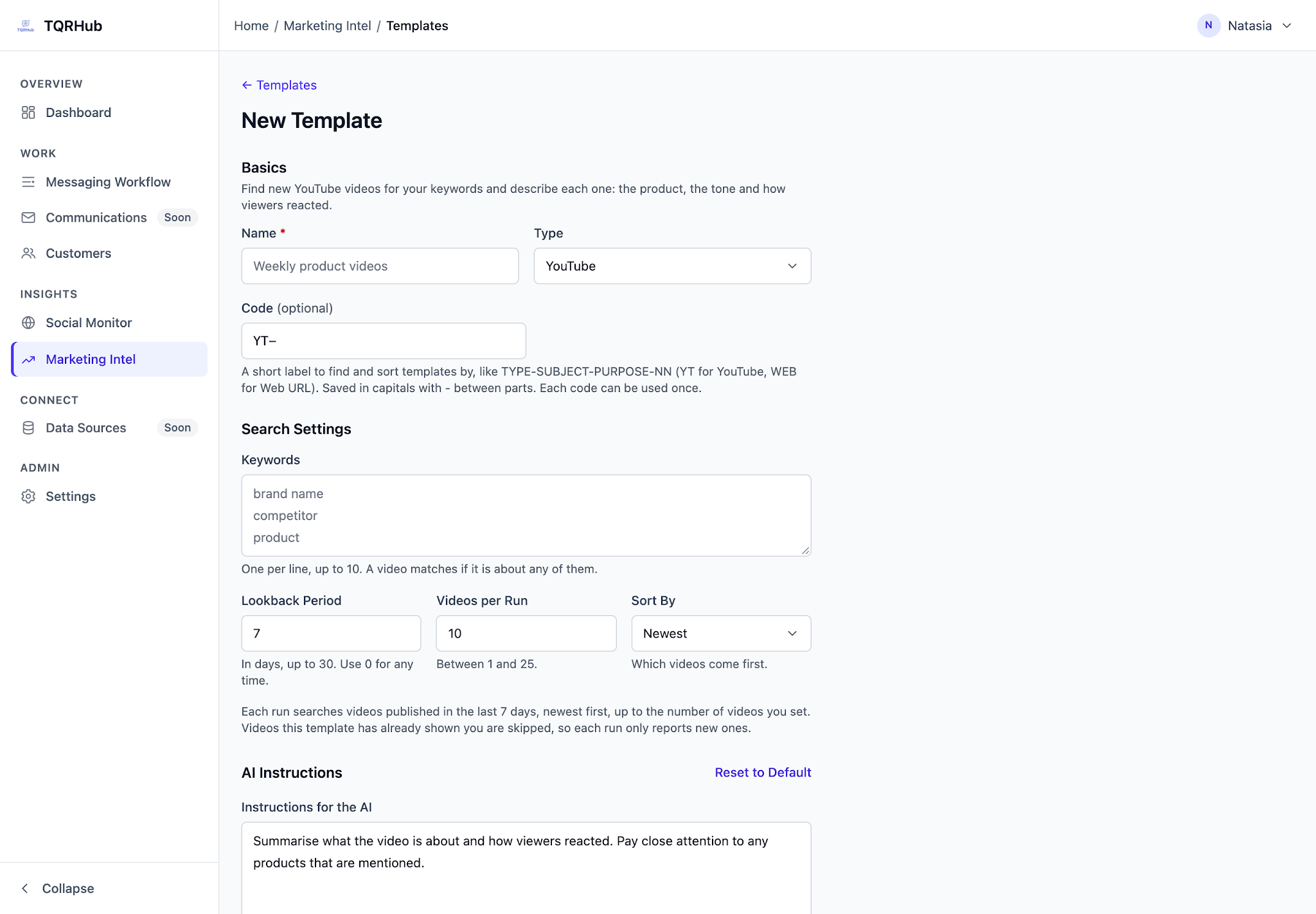
- Write Instructions for the AI in up to 1,500 characters. The instructions guide the analysis; the report format remains fixed.
- Save with Manual only, run the template, and review the result. Choose a recurring schedule once the output is useful.
Example · Product coverage
Summarize the product claims, strengths, limitations, and viewer reaction. Distinguish the presenter’s claims from audience feedback.
04 · SCHEDULE AND USAGE
Make useful intelligence repeatable.
Under Run, choose Manual only, Every day, Every week, Every 2 weeks, or Every month. For recurring operation, leave Switched On enabled and select Save Template.
Before enabling recurring runs, confirm the source and AI connections with your administrator. Start with focused sources and modest page or video limits.
| Run type | Usage to consider |
|---|---|
| Web URL | One Firecrawl credit for each page read, including linked pages, plus one AI request across all pages together. With change-only enabled and nothing changed, the AI request is skipped; page-reading usage can still apply. |
| Check Links | One page-reading credit to preview linked-page discovery. |
| YouTube | The guide estimates about 100 API units for the search plus 2 per new video, with AI usage for each summary. |
These figures describe the documented services and guidance. Confirm the applicable service limits and usage with your administrator before setting frequent schedules.
05 · REVIEW BEFORE YOU ACT
A report is the start of a decision.
Check the evidence
Open the report and follow its source links. Verify important prices, dates, specifications, and claims against the underlying source.
Separate facts from interpretation
Look for missing information, distinguish a presenter’s claims from audience feedback, and review AI conclusions before using them in business decisions.
Expect quiet runs
A run can complete without new findings. Change-only web monitoring may create no result, and YouTube templates skip videos they have already reported.
Refine the next run
Adjust sources, keywords, instructions, and limits if the output is too broad or misses the question you need answered. Test again manually before increasing frequency.
Before you switch on a schedule
- The business question and relevant sources are clear.
- Source and AI connections are confirmed.
- Names and codes make the template easy to find.
- A manual run has produced useful, verifiable output.
- Page or video limits and recurring usage are understood.
- Someone is responsible for reviewing findings and deciding the next step.
For reviewing reports in the shared workspace, continue to the Team Workspace Guide’s AI reports section ↗.